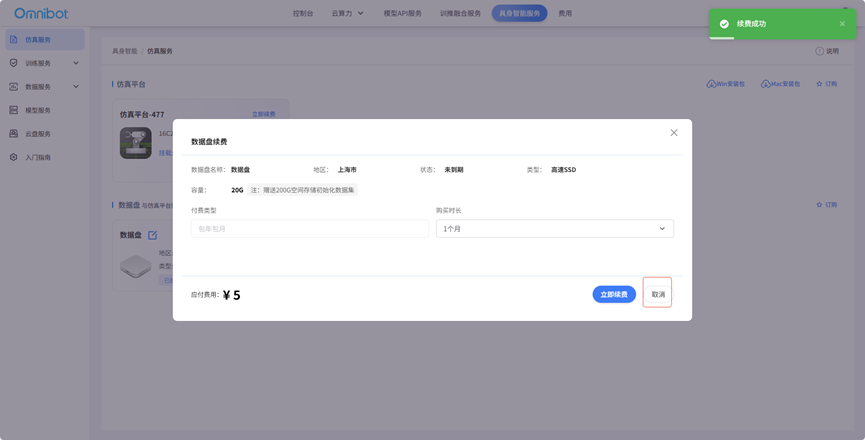
Simulation services
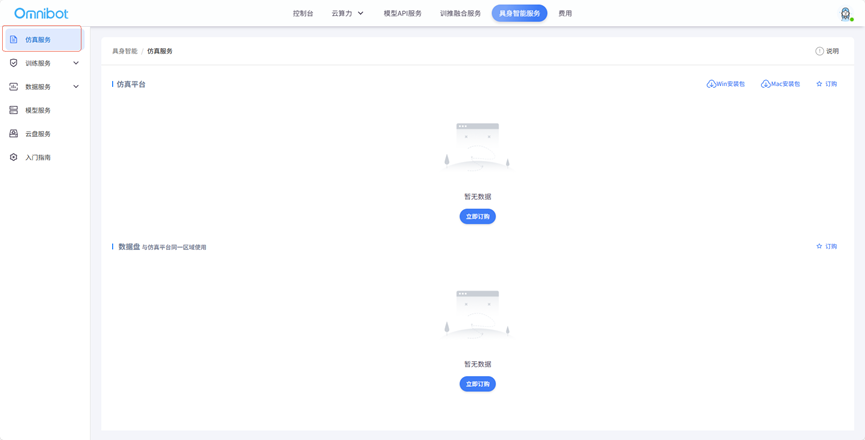
1. Click "Simulation Service" to enter the simulation service page
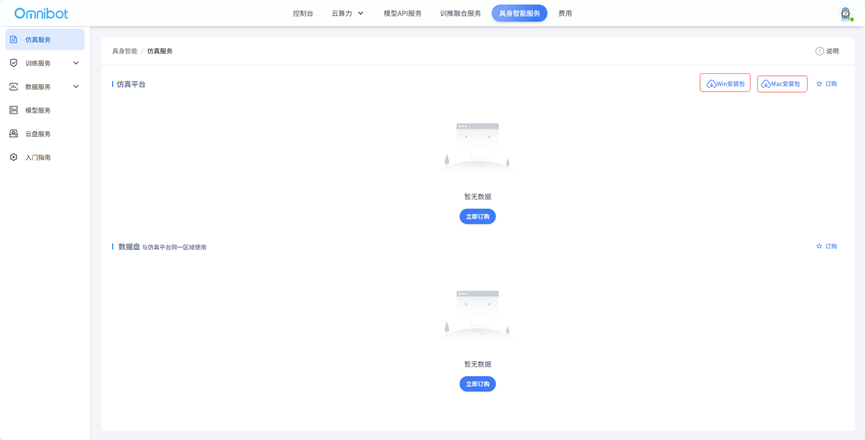
2. Download the client installation package, click "win installation package" for Win system, and click "mac installation package" for Mac system (required for subsequent access to the simulation platform)
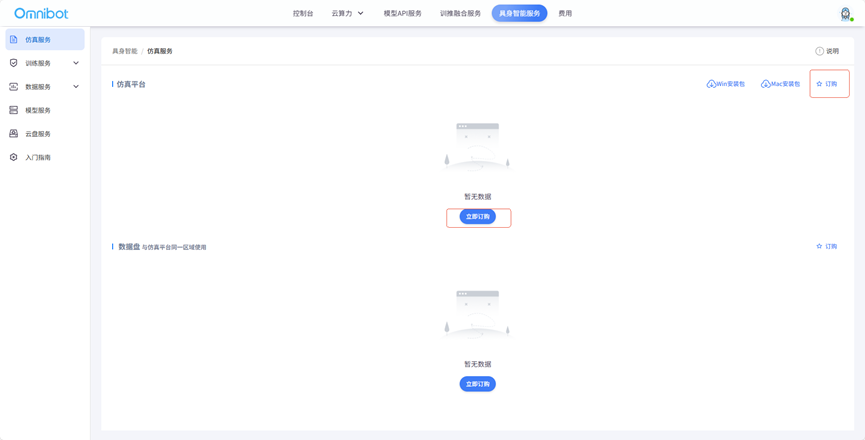
3. Simulation platform Subscription
Click "Order" or "Order Now" to order the simulation platform
Select "Purchase Duration" and "Package Type" and click "Order Now" to order the simulation platform 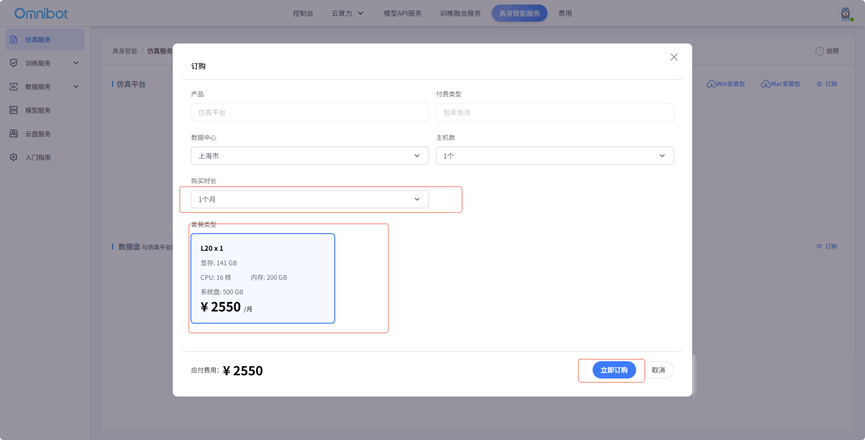
A successful order shows the simulation platform content 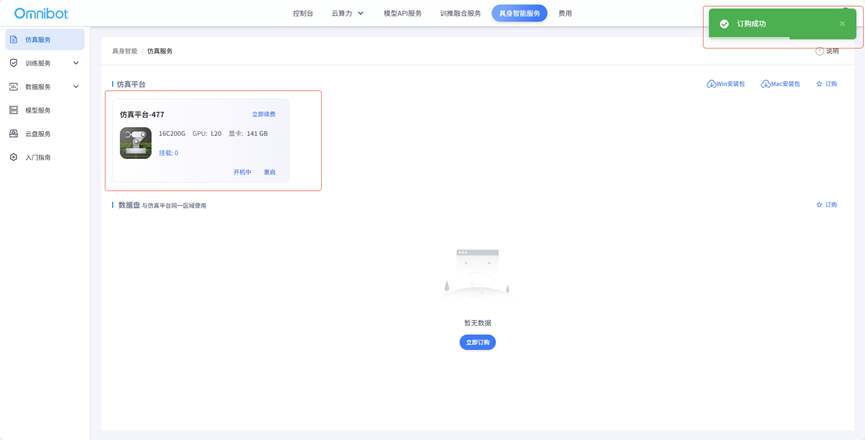
Click "Cancel" to not order back to the main screen
4. Data Disk Ordering
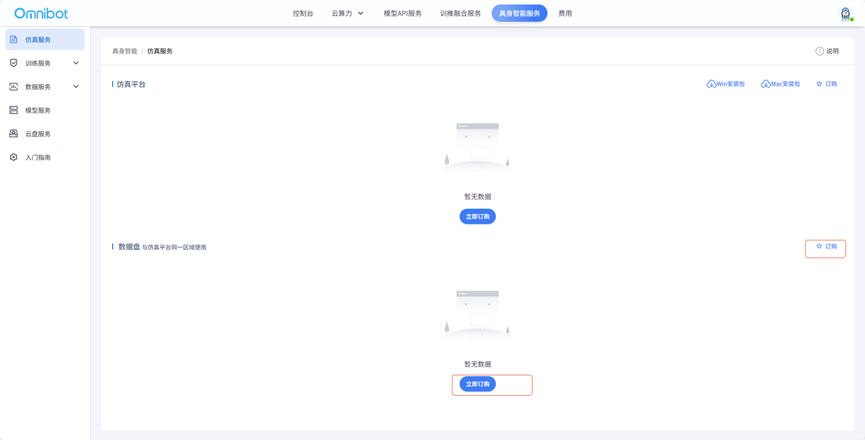
Click "Order Now" and "Order" on the data disk to order the data disk
Select "Capacity" (range 20-1024G), "Quantity" (range 1-3), "Duration" (range 1-24 months) and select "Simulation Platform" (required) to order. Click "Order Now" to begin ordering
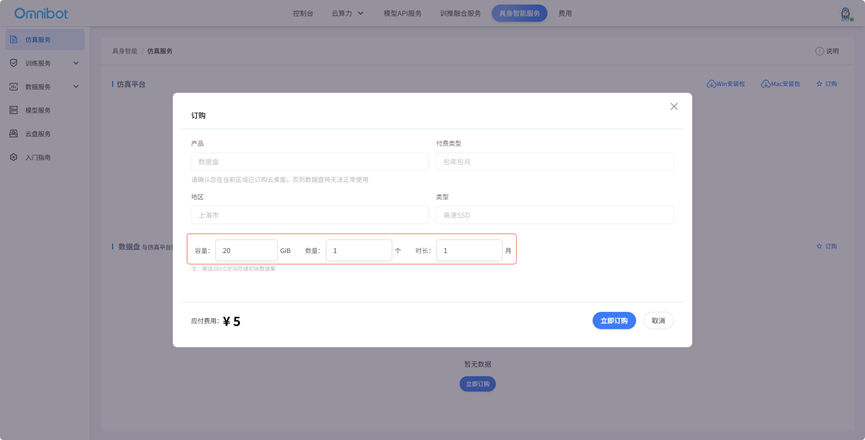
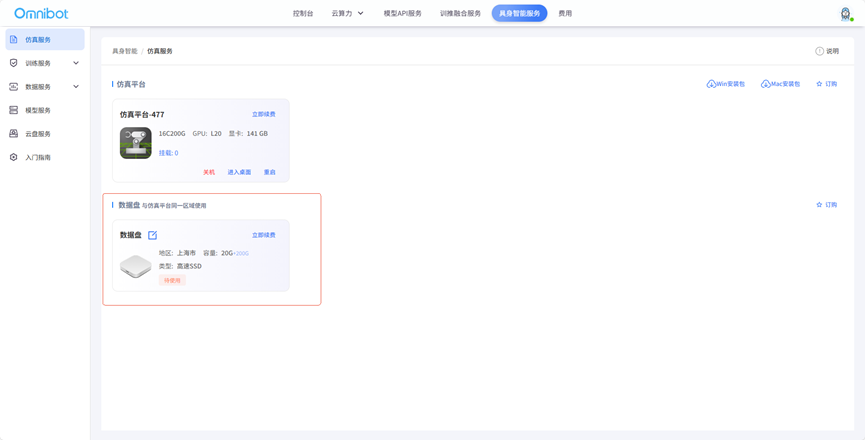
Click "Cancel" to not order back to the main page 5. Emulation service function operation
5. Emulation service function operation
Click "Shutdown" to turn off the simulation platform
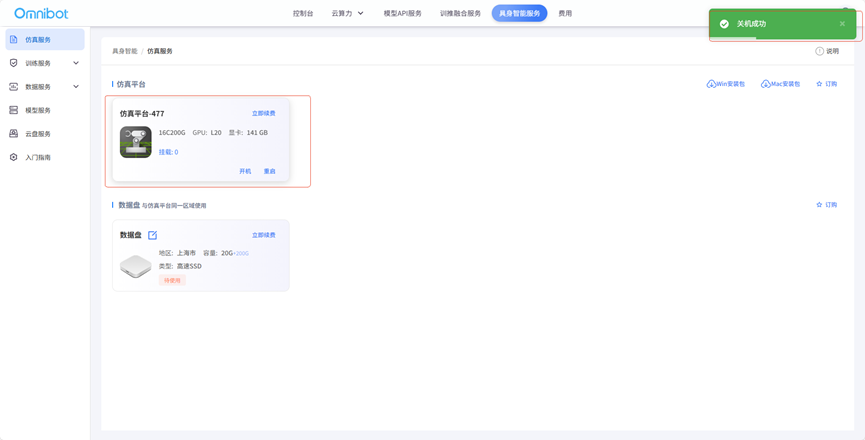
Click "Power on" to start the simulation platform 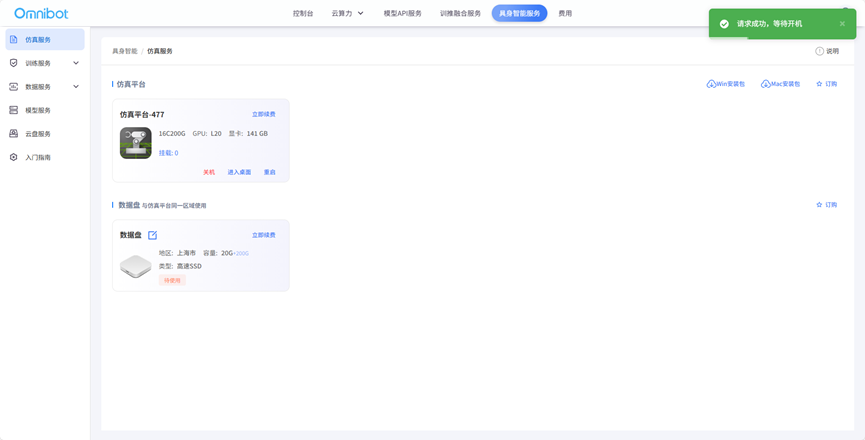
Click "Enter desktop" to enter the simulation platform, and the robot can be trained in the simulation platform. If it is not installed, download the client installation package according to the prompts, and install it again in "Enter desktop". 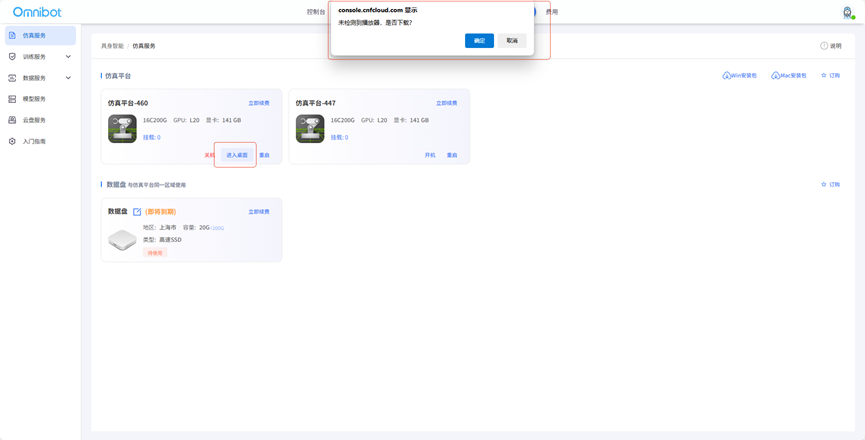
After installing the client, click "Enter desktop" and click "Open". 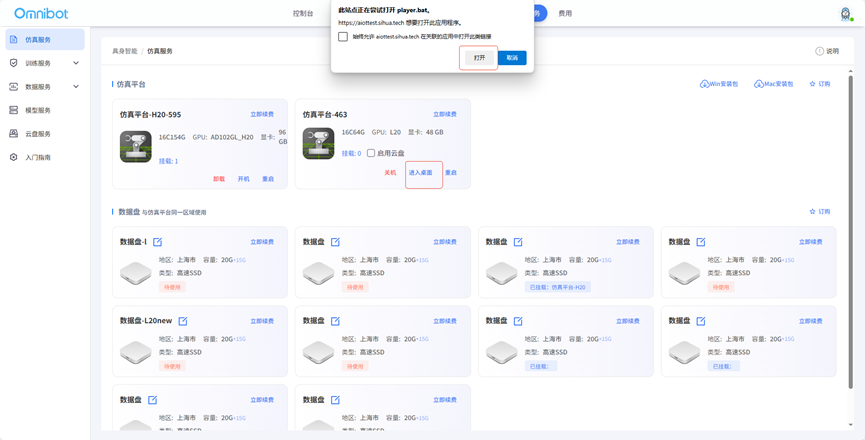
Enter the simulation platform operation page 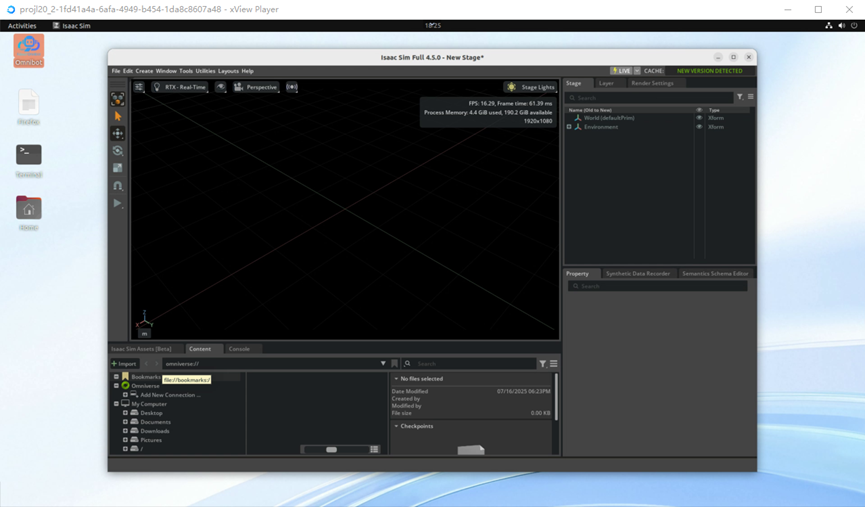
Click "x" to select "Exit desktop", "desktop shutdown" or "Remove operation" 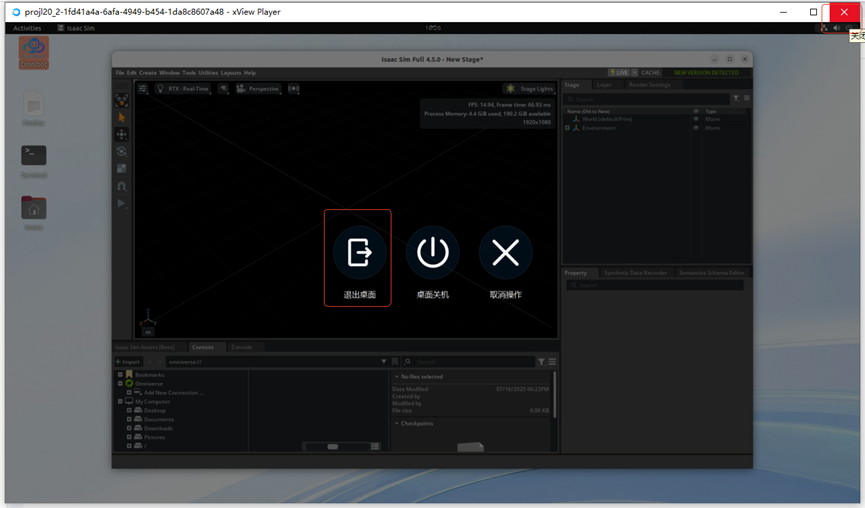
Click "Desktop Shutdown" (if there is a problem, the desktop does not shutdown) Click "Cancel Action" still in desktop without exiting 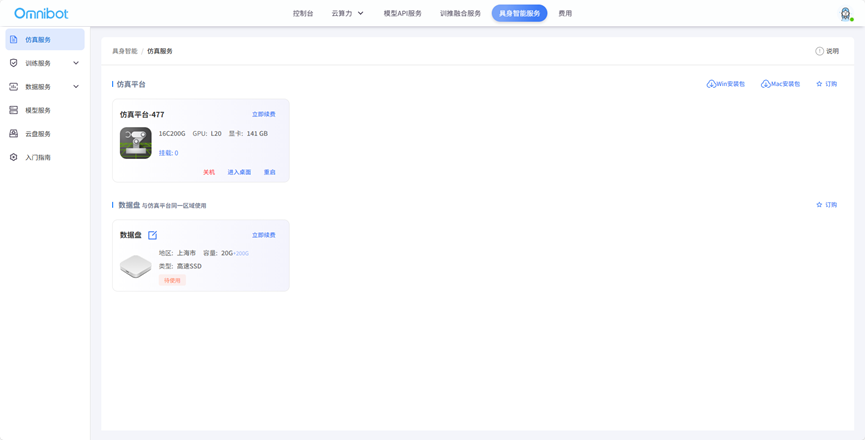
Click "Restart" to restart the simulation platform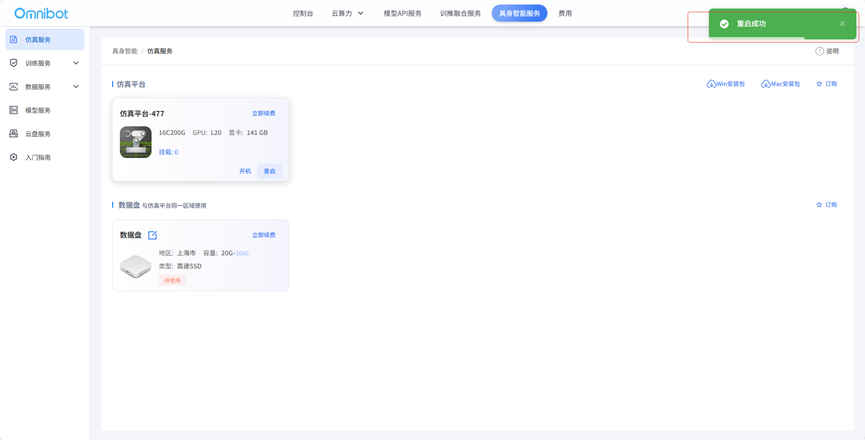
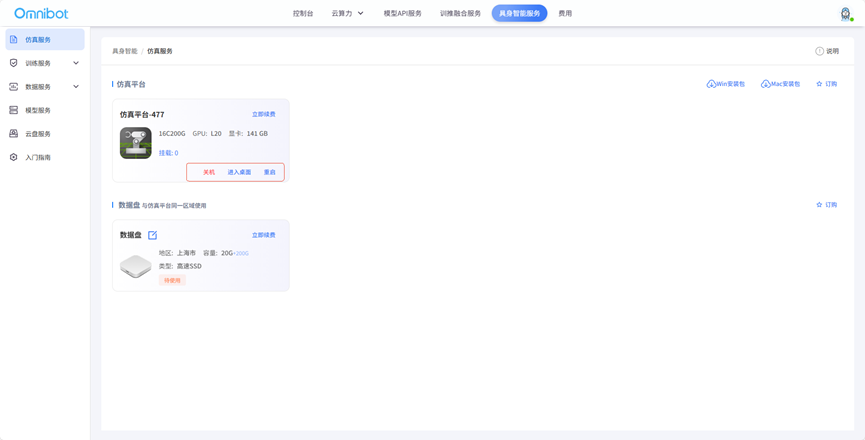
Click "Renew Now" to extend the use time of the simulation platform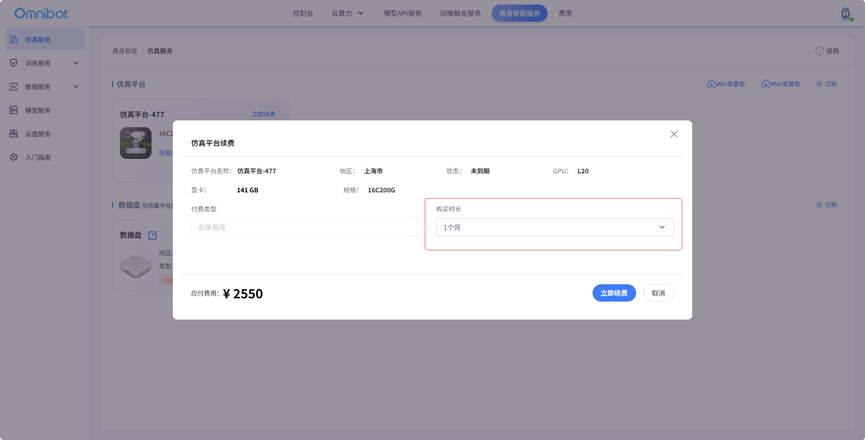
Select "Purchase time" and click "Renew Now" to show successful renewal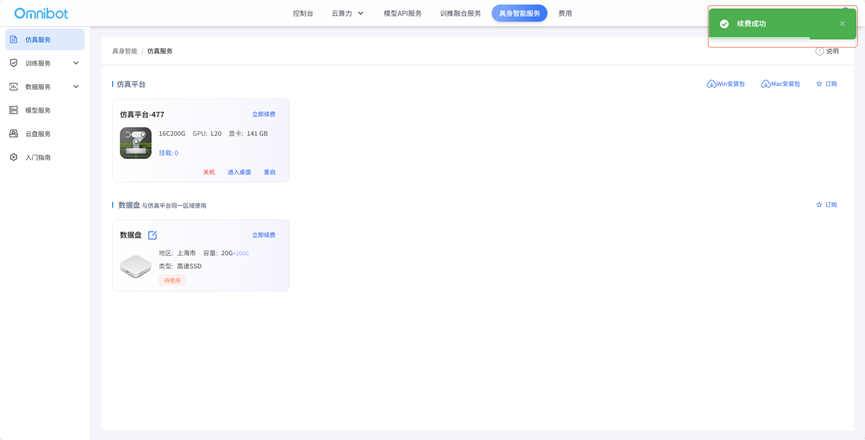
Click "Cancel" to not renew and close the renewal popup 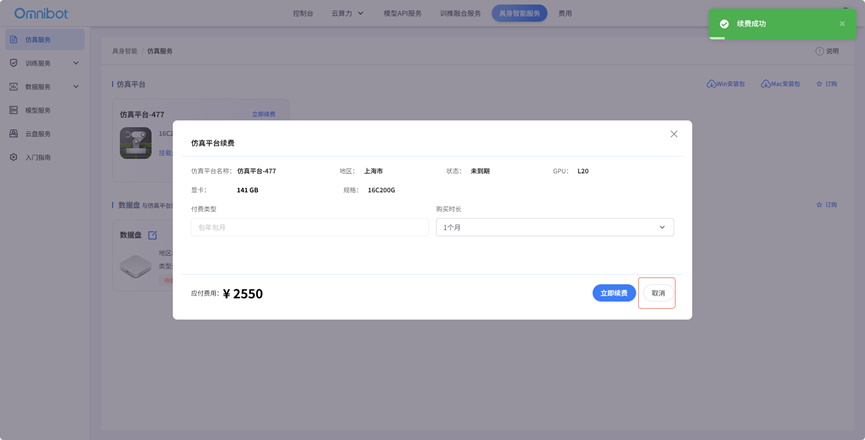
Click "Mount" to select the "Data Disk Name" to mount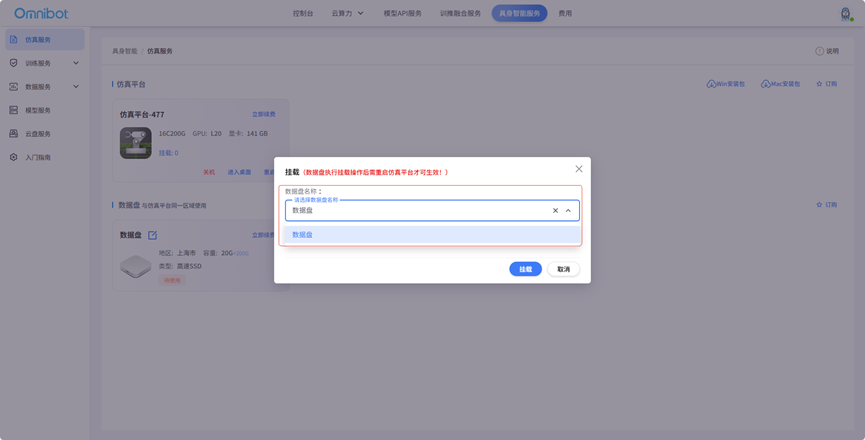
Click "Mount" to mount the data disk to the simulation platform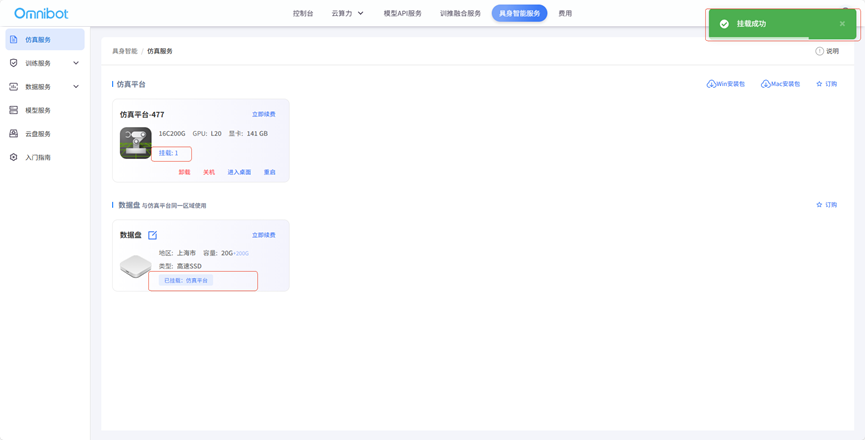
Click "Cancel" to close the mount window without mounting operation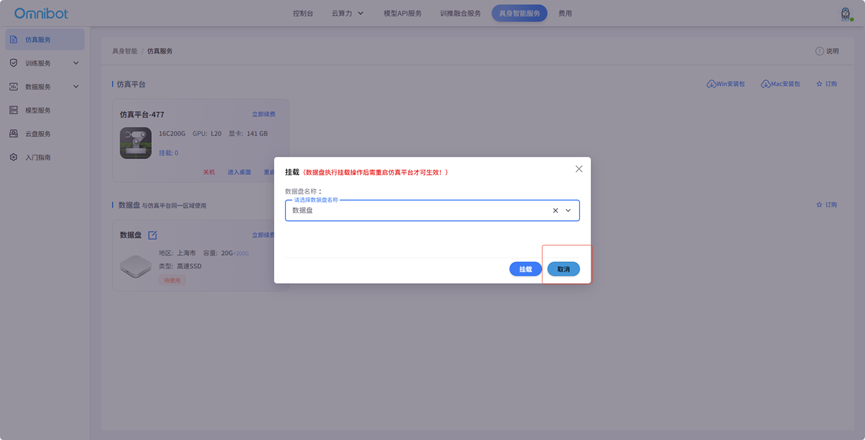
Click "Unmount" to select the data disk you want to unmount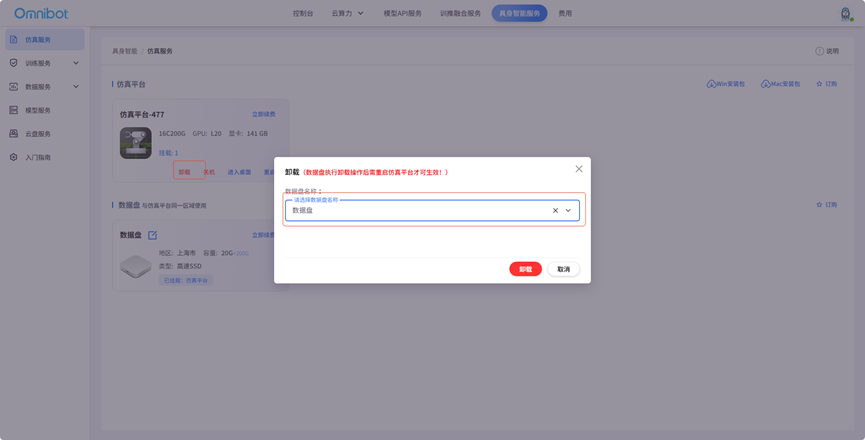
Click "Uninstall" the simulation platform to uninstall the data disk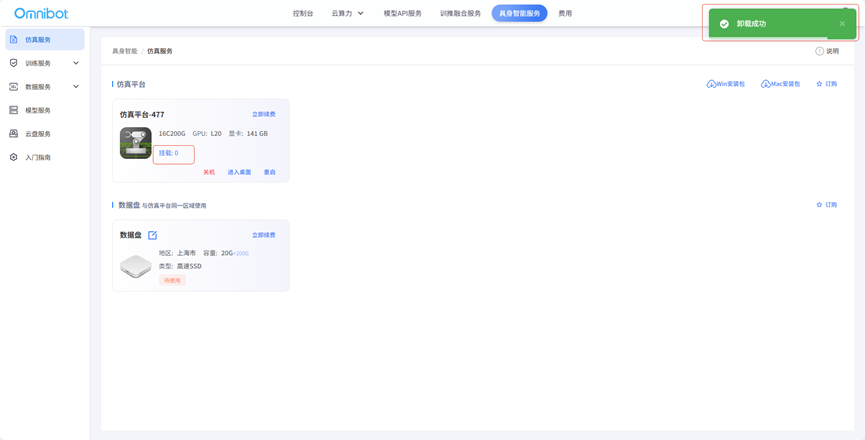
Click "Cancel" to not uninstall, close the uninstall window 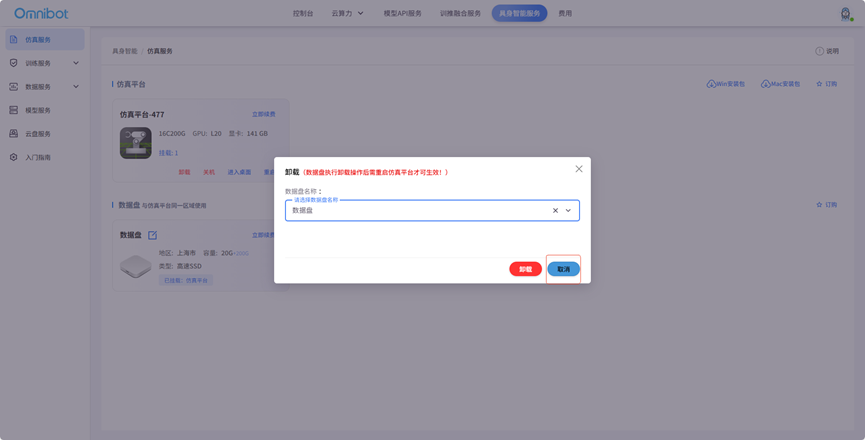
6. Data disk renewal function
Click "Renew Now" on the data disk, select the scale surface time and click "Renew now"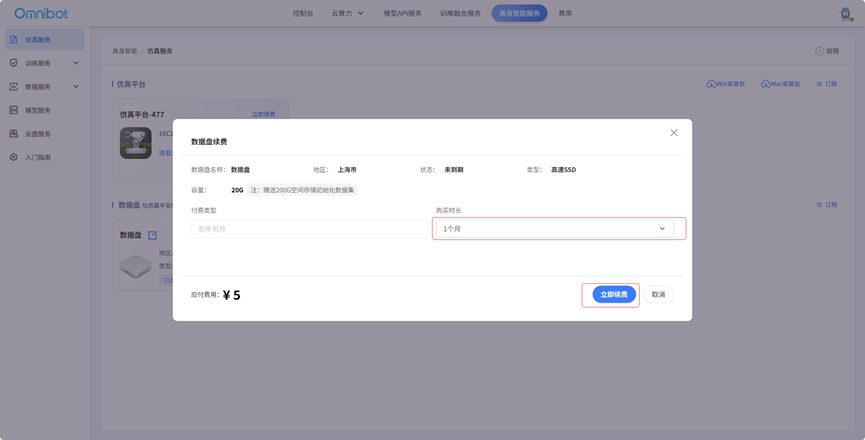
Successful renewal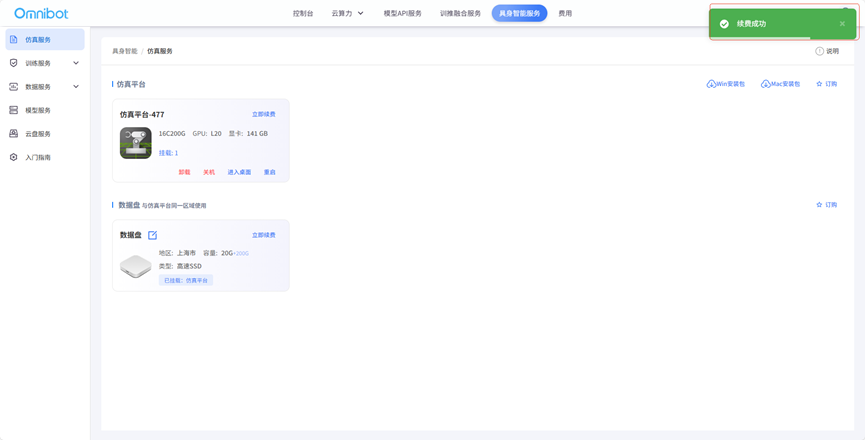
Click "Cancel" to do not renew the operation, close the data disk renewal window